Ubility Vector Store
The Ubility Vector Store is a built-in platform component that enables semantic search and information retrieval across all AI-powered features in Ubility.
It is designed to support Retrieval-Augmented Generation (RAG) use cases without requiring external vector database setup.
By embedding content directly within Ubility, the Vector Store provides a unified, managed way to store, search, and retrieve knowledge using semantic similarity.
Purpose
The Ubility Vector Store allows AI nodes and agents to:
-
Retrieve information based on meaning rather than keywords.
-
Access relevant knowledge during execution.
-
Generate accurate, data-grounded outputs across different use cases.
This ensures that responses are based on your knowledge base and not solely on the general knowledge of the underlying language model.
How It Works
The Vector Store operates through three core stages:
1. Embedding
Source content is converted into vector embeddings using a selected embedding model.
2. Storage
The embeddings are stored in Ubility’s built-in Vector Store.
3. Retrieval
During execution, AI nodes query the Vector Store to retrieve the most relevant content based on semantic similarity.
This process is fully managed by Ubility and requires no external infrastructure.
Vector Store Configuration
This section explains how to configure and use the Ubility Vector Store across conversations, workflows, and AI nodes that support vector-based retrieval.
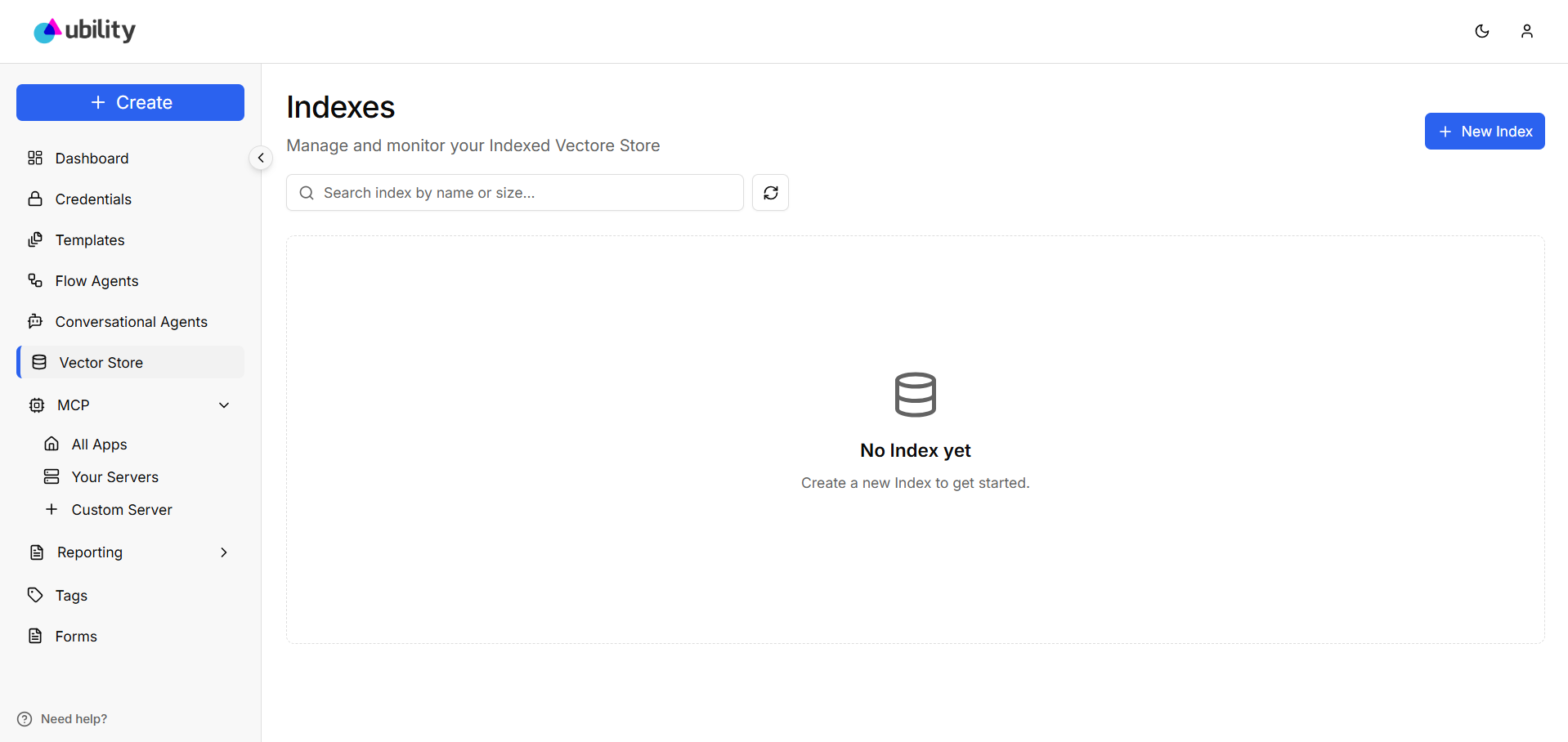
1. Create a Vector Store
To begin, create a new Vector Store from the Ubility dashboard:
Navigate to Vector Stores in the platform.
- Click Create New Index.
-
Provide a name to identify the index.
-
Select your provider and enter the required credentials.
-
Choose an Embedding Model.
-
Specify the dimensions corresponding to your selected Embedding Model.
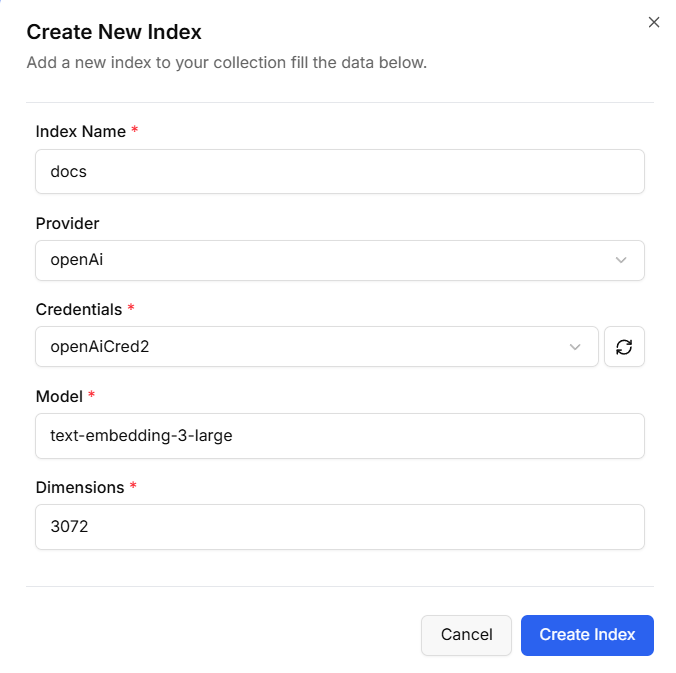
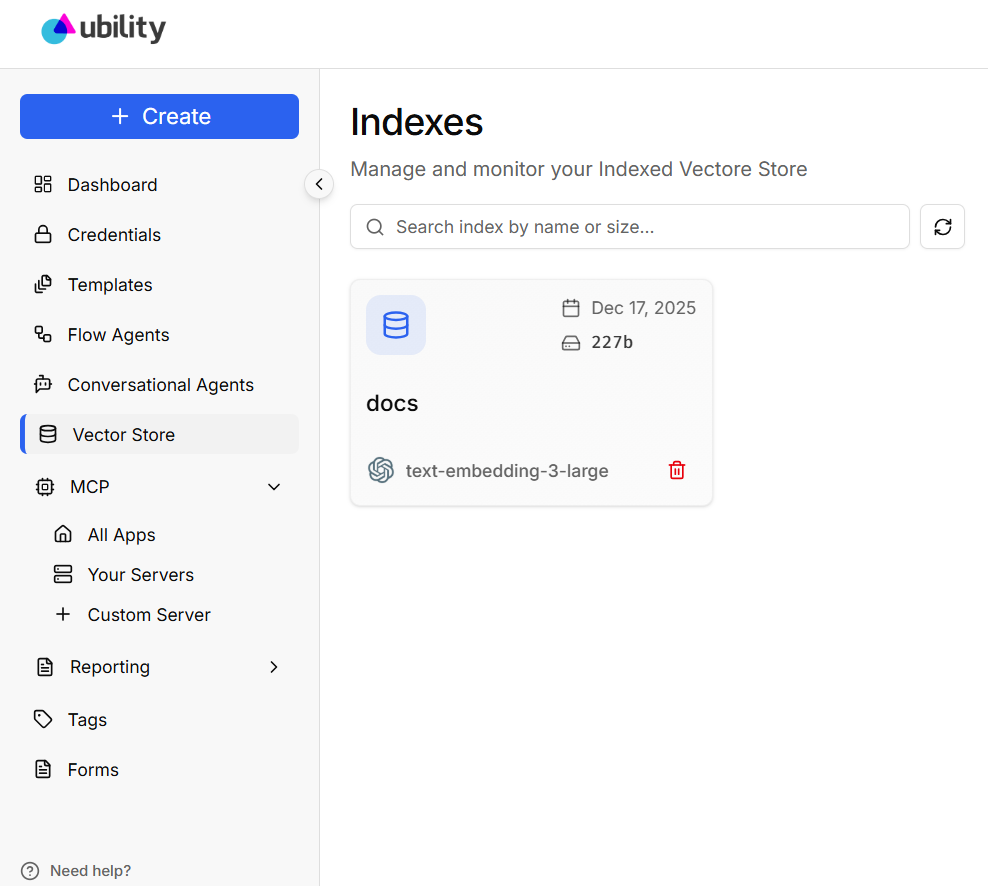
Once created, the Vector Store is ready to ingest data and can be reused across multiple conversations and workflows.
The Embedding Model is responsible for converting text into vector representations. When selecting an Embedding Model, consider its semantic accuracy, cost, and performance, and compatibility with your AI providers.
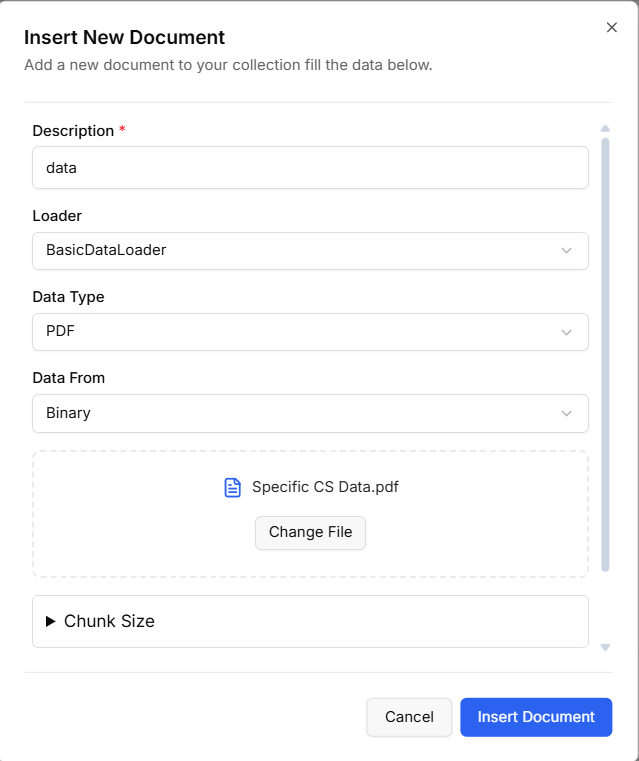
2. Insert Documents
After creating the vector store, add content to be indexed.
Supported data sources include:
Basic Data Loader
Upload documents such as PDFs, text files, CSV files, and JSON.
Web Page Loader
Provide a single URL to ingest and index its content.
Once added, Ubility automatically processes the content and generates embeddings.
3. Indexing and Processing
After data is inserted:
-
The content is parsed and split into manageable chunks.
-
Each chunk is embedded using the selected Embedding Model.
-
Embeddings are stored securely in the built-in Vector Store.
This process happens automatically and does not require manual intervention.
4. Use the Vector Store in AI Nodes
Once configured, the Vector Store can be selected in any AI node that supports vector-based retrieval, such as:
-
Question and Answer (RAG) nodes
-
Compare Documents node
-
As a tool for the AI Agent
-
AI-powered workflow nodes
When executed, the node queries the Vector Store and retrieves the most relevant content based on the input query.